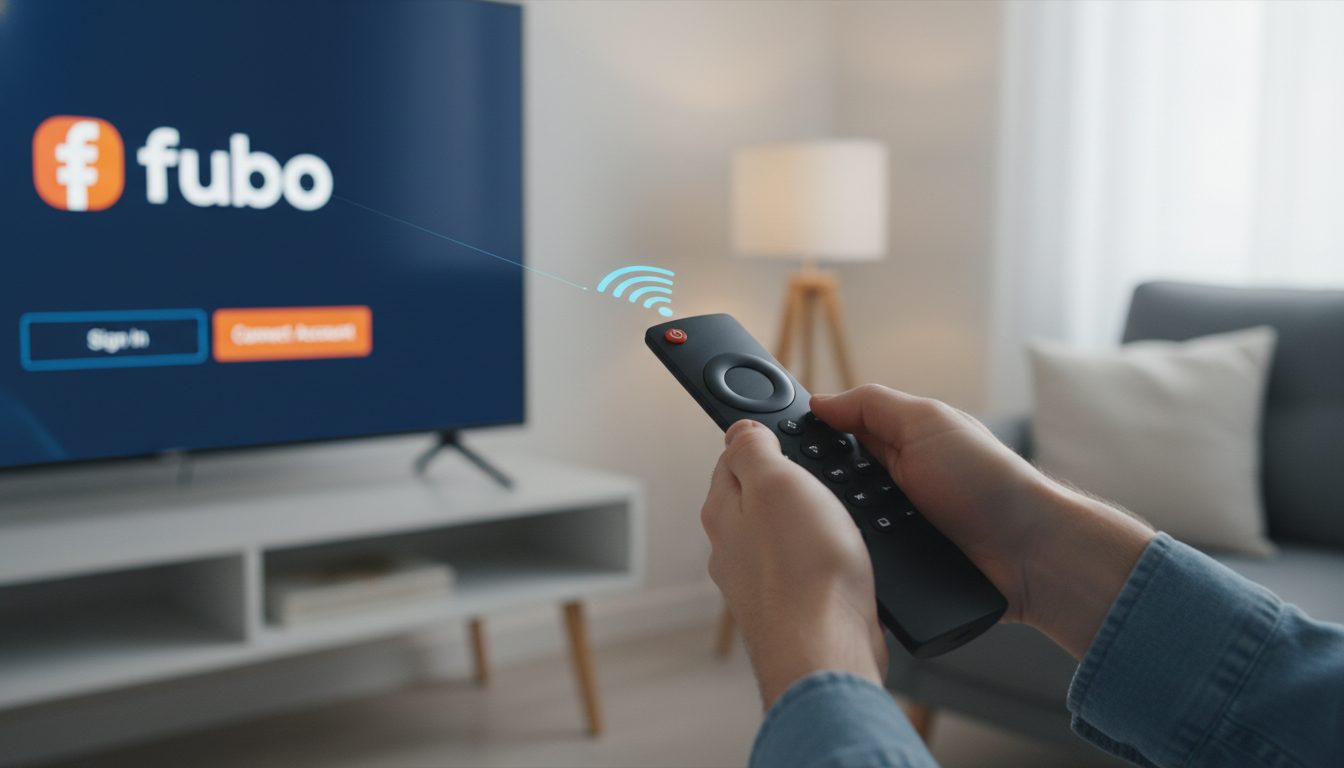
Preparing Your Home Streaming Setup
Setting up a modern home entertainment system requires a few initial preparation steps. Before attempting to link any subscription services, ensure your television, streaming player, and local network are all powered on and connected. Having a secondary device, such as a smartphone, tablet, or computer, close by will make the activation process significantly faster, as you will need to verify your account details on a web browser.
Keep in mind that software interfaces, application features, and subscription rules change frequently. It is highly recommended to check the official support documentation for your specific device manufacturer if you encounter unexpected menus or compatibility blocks during your setup journey. Additionally, ensure your TV is set to the correct HDMI input channel corresponding to your streaming device. If you are using an external sound system, such as a soundbar or audio-video receiver (AVR), ensure it is properly calibrated and connected via HDMI ARC or eARC to prevent audio-video synchronization issues later on. Make sure your secondary device is connected to the same local network as your TV, as this can help prevent handshake errors during the linking phase.
Sources: support.fubo.tv
Network Requirements and Bandwidth Optimization
To enjoy a seamless streaming experience on Fubo without buffering, stuttering, or pixelation, you must ensure your local network meets the platform's official bandwidth requirements. Fubo automatically adjusts video quality based on your real-time connection speed, but having a stable, high-speed connection is critical for maintaining high-definition and ultra-high-definition feeds.
The official minimum download speeds required for streaming Fubo are categorized by resolution:
- **Standard Definition (480p):** Requires a continuous download speed of at least 3 Mbps, which is ideal for smartphones and small tablets.
- **High Definition (720p):** Requires a continuous download speed of at least 7 Mbps, suitable for larger tablets and basic streaming setups.
- **Full High Definition (1080p):** Requires a continuous download speed of at least 10 Mbps for high-quality video on-demand and live feeds on connected TV devices.
- **Ultra High Definition (4K):** Fubo's minimum recommended download speed for 4K streams is 25 Mbps. If your network falls below this threshold, the stream will either buffer continuously or automatically downgrade to a lower resolution.
Keep in mind that these requirements are per active stream. If multiple users in your household are streaming content, gaming, or working simultaneously, you will need to calculate your total bandwidth needs. For example, running three concurrent 720p streams requires a continuous, dedicated speed of at least 21 Mbps. To verify your current network performance, visit an independent speed testing tool like fast.com. If you experience persistent buffering despite having high advertised speeds, consider connecting your streaming device directly to your router using an Ethernet cable, as Wi-Fi signals can suffer from local interference and latency spikes. Additionally, check your router's Quality of Service (QoS) settings to prioritize streaming traffic on your home network.
Sources: support.fubo.tv, support.fubo.tv
Hardware Compatibility and Operating System Requirements
Before attempting to install the Fubo application, it is essential to verify that your smart TV or streaming media player is officially supported. Fubo regularly updates its application architecture to implement security patches and advanced features, which means older operating systems are periodically phased out.
Review the following strict hardware and operating system requirements to confirm compatibility:
- **Amazon Fire TV:** All Fire TV devices and Fire TV Edition smart TVs must run Android OS 7.0 (Nougat) or higher, which corresponds to Fire OS 6.0 or higher. Legacy devices running Fire OS 5.0 or older are no longer supported.
- **Roku:** Fubo requires Roku OS 14 or higher for full support and access to advanced features on Model 3700X and higher. Older models, such as the 3600X and lower, will experience limited functionality and may not support newer app updates. Legacy systems running Roku OS 9.0 are completely outdated and unsupported.
- **Samsung Smart TV:** Fubo is compatible with Samsung Smart TVs from model years 2017 and newer. Models from 2015 and 2016 are no longer supported.
- **LG Smart TV:** Compatible with LG Smart TVs from model years 2018 and newer running webOS 4.0 or higher. Older models running webOS 3.0 or 3.5 are not compatible.
- **Android TV and Google TV:** Requires Play Protect Certified devices running Android OS 7.0 or higher. Older devices running Android OS 5.0 or 6.0 are unsupported.
- **Apple TV:** Requires a 4th generation Apple TV or newer running tvOS 13.0 or higher.
- **Vizio SmartCast TV:** Supports all 2016 and newer Vizio SmartCast models.
- **Xbox:** Compatible with Xbox One, Xbox One S, Xbox One X, Xbox Series S, and Xbox Series X. Note that PlayStation and Nintendo Switch consoles are not supported.
If your device does not meet these minimum requirements, you will need to update its operating system via the system settings menu. If your hardware is too old to receive the necessary updates, you will need to connect a compatible external streaming stick (such as a modern Roku, Fire TV, or Apple TV) to your television's HDMI port to access Fubo.
Sources: support.fubo.tv, support.fubo.tv
Setting Up Your Google TV or Android TV Device
If you are using a Google TV or Android TV device to access your streaming apps, you must first complete the initial hardware and system configuration. Plug the streaming device directly into an open HDMI port on your television and switch your TV's input source to match that specific port. To begin interacting with the setup wizard, pair your remote control by pressing and holding both the Back and Home buttons simultaneously until the indicator light flashes.
Once the remote is paired, select your preferred language and region settings. This establishes the basic operating framework for your device, allowing it to load the correct local application store and system services required for streaming platforms. You will then be prompted to connect to your local wireless network.
Be aware of local network restrictions during this phase. Streaming devices generally do not support WPA2-Enterprise networks, which are common in university dormitories, hotels, or corporate offices. If you are setting up your device in one of these environments, you may need to register your device's MAC address with the network administrator or use a travel router. Additionally, for the best streaming performance, connect to a 5 GHz Wi-Fi band rather than a 2.4 GHz band, as the 5 GHz band offers significantly higher data transfer rates and less congestion. If you experience setup errors, you can hold down the Back button on your remote control to open troubleshooting menus or restart the configuration process.
Sources: support.google.com
Downloading and Installing the Fubo App
Once your streaming device or smart TV is fully configured and connected to the internet, you must download and install the Fubo application. The installation process varies slightly depending on your device's platform:
- **Roku:** From the Roku Home screen, navigate down to 'Search' and press OK. Type 'Fubo' using the on-screen keyboard, select the Fubo app from the search results, and click 'Add Channel'. Once installed, you can move the channel to the top of your home screen for easier access.
- **Amazon Fire TV:** Press the Home button on your remote, then navigate to the 'Find' menu and select 'Search'. Type 'Fubo', highlight the app in the search results, and select 'Get' or 'Download' to install it.
- **Apple TV:** Open the App Store from the home screen, navigate to the search tab, and type or speak 'Fubo'. Select the app and click 'Get' (or the cloud icon if you have downloaded it previously) to begin installation.
- **Samsung Smart TV:** Press the Home button on your remote to bring up the smart hub, navigate to 'Apps', and select the search icon in the top-right corner. Search for 'Fubo', select the app, and click 'Install'.
- **LG Smart TV:** Press the Home button on your remote to open the LG Content Store or Home Dashboard. Select the search icon, type 'Fubo', select the application, and click 'Install'.
After the installation is complete, launch the Fubo application from your device's home screen or app drawer to begin the account linking process. Ensure that you have sufficient storage space on your device; if the download fails, you may need to uninstall unused applications to free up memory.
Sources: support.fubo.tv
Generating the Fubo Activation Code
With the Fubo application successfully installed and launched on your television, you will be greeted by a welcome screen offering options to start a free trial or sign in. Select the 'Sign In' option to proceed. To avoid the tedious process of typing your full email address and password using a standard remote control, Fubo provides a streamlined web-based activation method.
On the sign-in screen, select 'Sign In with Code' (or 'Sign In with Web Code'). The application will immediately generate a unique, randomized, six-digit alphanumeric code on your television screen. Along with the code, the screen will display instructions directing you to a specific activation web address.
It is critical to keep this television screen open and active. Do not close the Fubo application, navigate away from the screen, or turn off your television during this step. Doing so will immediately invalidate the generated code, forcing you to restart the application and generate a brand-new sequence. Note that these activation codes are highly secure but temporary; they are programmed to expire after exactly five minutes of inactivity. If you do not complete the process within this timeframe, a new code will automatically generate on the screen.
Sources: support.fubo.tv
Linking Your Account via the Web Portal
Once the activation code is visible on your television screen, switch to a separate secondary device, such as a smartphone, tablet, or desktop computer. Open your preferred web browser and navigate directly to the official activation address at `fubo.tv/connect` (or `fubo.tv/link`).
If you are not already logged into your Fubo account on that specific web browser, you will be prompted to enter your subscription credentials. Please note that Fubo has phased out direct social media logins (such as signing in with Facebook, Google, or Apple) on many of its TV interfaces. If you originally created your account using a social login, you must use the email address associated with that social account and your Fubo password to log in.
After successfully logging into your profile on your secondary device, you will see a web form prompting you to enter the activation code. Type the exact alphanumeric sequence displayed on your television screen into the form and click 'Submit'. The web portal will process the code, and within a few seconds, a confirmation message will appear on your browser. Simultaneously, the Fubo application on your television will automatically refresh, bypass the login screen, and load your profile selection page.
Sources: support.fubo.tv, fubo.tv
Alternative Method: Manual Sign-In via On-Screen Keyboard
While the web-based activation code method is the fastest and most convenient way to link your account, there are scenarios where it may not be feasible. For instance, if you do not have a secondary device nearby, if your smartphone's battery is dead, or if you are experiencing temporary internet connectivity issues on your mobile device, you can opt for the manual sign-in method.
To sign in manually, navigate to the Fubo sign-in screen on your television and select 'Sign In with Email' instead of the code option. This will open a standard login interface featuring fields for your email address and password, accompanied by an on-screen virtual keyboard.
Using your television remote's directional pad, highlight and select each character of your email address and password. If your streaming device's remote control supports voice-to-text capabilities (such as the Siri Remote on Apple TV or the Alexa Voice Remote on Fire TV), you can hold down the microphone button to dictate your credentials, which can significantly speed up the process. While manual entry is more tedious and prone to typos, it serves as a reliable bypass that connects directly to Fubo's authentication servers without requiring an external web browser. Be careful when entering special characters or numbers, as the virtual keyboard layout can vary between streaming platforms.
Sources: support.fubo.tv
Troubleshooting Code Errors and Expirations
If you encounter errors during the activation process, there are several common troubleshooting steps you can take to resolve the issue. The most frequent issue is code expiration. Because the randomized activation codes expire after five minutes, any delay in navigating to the web portal or logging into your account can cause the submission to fail. If this occurs, look back at your television screen; the Fubo app will typically generate a new code automatically. Refresh the web page on your secondary device and enter the new sequence.
Another common issue is character confusion. Alphanumeric codes can sometimes contain characters that look highly similar, such as the number '0' and the letter 'O', or the number '1' and the uppercase letter 'I'. Carefully examine the code on your TV screen and try alternative character combinations if the portal rejects your entry.
Additionally, ensure that your secondary device is connected to the internet and that you are not using a virtual private network (VPN) on either device, as geo-blocking or IP mismatches can interfere with the activation handshake. If you continue to experience persistent failures, clear your web browser's cache and cookies, try using an incognito or private browsing window, or attempt the activation using a different web browser or mobile device altogether. If your local network uses a strict firewall, you may need to temporarily disable it to complete the authentication.
Sources: support.fubo.tv
Advanced Features, Multiview, and 4K Streaming
Once your Fubo account is successfully linked to your streaming device, you can take advantage of the platform's advanced viewing features. Fubo is highly regarded for its sports-centric capabilities, offering unique tools designed to enhance the live viewing experience.
One of Fubo's standout features is **Multiview**, which allows you to watch up to four live channels simultaneously on a single screen. However, this feature has strict hardware and software limitations:
- **Roku Devices:** To access Multiview, your Roku device must run Roku OS 14 or higher and have version 5.8.0 or higher of the Fubo app installed. Compatible models include the Roku Ultra (Model 4850X, supporting up to 4 screens) and select Roku Streaming Sticks (such as Models 3940X2, 3941X2, 3820X2, and 3821X2, supporting up to 2 screens).
- **Apple TV:** Multiview is fully supported on Apple TV 4K devices, providing a seamless, highly responsive multi-stream interface.
Additionally, if you subscribe to Fubo's Elite, Premier, Deluxe, or Ultimate plans, you can stream select live sporting events in **4K Ultra HD**. To stream in 4K, ensure your television supports HDR10, you are using a high-speed HDMI 2.0 or HDCP 2.2 compatible cable, and your internet connection maintains a continuous download speed of at least 25 Mbps. You may also need to adjust your streaming device's display settings—such as setting the Dynamic Range on Fire TV to 'Dynamic' or 'Adaptive'—to ensure the 4K feed renders correctly. Finally, keep in mind your subscription's simultaneous stream limits: Fubo Pro plans allow you to stream on up to 10 devices connected to your home network simultaneously, plus up to 3 devices on the go, making it easy to share your subscription across your entire household.
Sources: support.fubo.tv, support.fubo.tv, support.fubo.tv
- https://support.fubo.tv/hc/en-us/articles/360035300072-How-do-I-sign-in-on-my-TV-using-a-code
- https://support.google.com/googletv/answer/10050221?hl=en
- https://support.microsoft.com/windows
- https://support.fubo.tv/hc/en-us/articles/115005151107-How-fast-does-my-internet-connection-need-to-be-
- https://support.fubo.tv/hc/en-us/articles/360011479911-Does-Fubo-offer-any-content-in-4K-HDR-
- https://support.fubo.tv/hc/en-us/articles/115005151127-What-devices-can-I-watch-Fubo-on-
- https://support.fubo.tv/hc/en-us/articles/115005151307-I-can-t-sign-in-to-my-Fubo-app-
- https://support.google.com/googletv/answer/10050221
- https://support.fubo.tv/hc/en-us/articles/115005151247-How-do-I-install-the-Fubo-app-
- https://fubo.tv/signin
- https://support.fubo.tv/hc/en-us/articles/360053213391-How-does-Multiview-work-on-Roku-